Setup guide
Connect athletedata to Claude
Connect your Garmin, WHOOP, Oura and the rest of your training apps to Claude by adding athletedata as a custom connector. Works on both claude.ai (web) and Claude Desktop.
Fastest way
Add athletedata to Claude in one click
Once your trial is running, one link opens Claude's connector dialog with everything filled in - no key to copy and nothing to paste. Prefer to do it by hand? The steps below still work.
Or add it by hand
Open Claude's connector settings
Go to claude.ai/customize/connectors. If you're on Claude Desktop, the same page lives under Customize → Connectors.
Click 'Add custom connector'
In the Connectors panel, click the + icon next to the search icon, then choose Add custom connector from the menu.
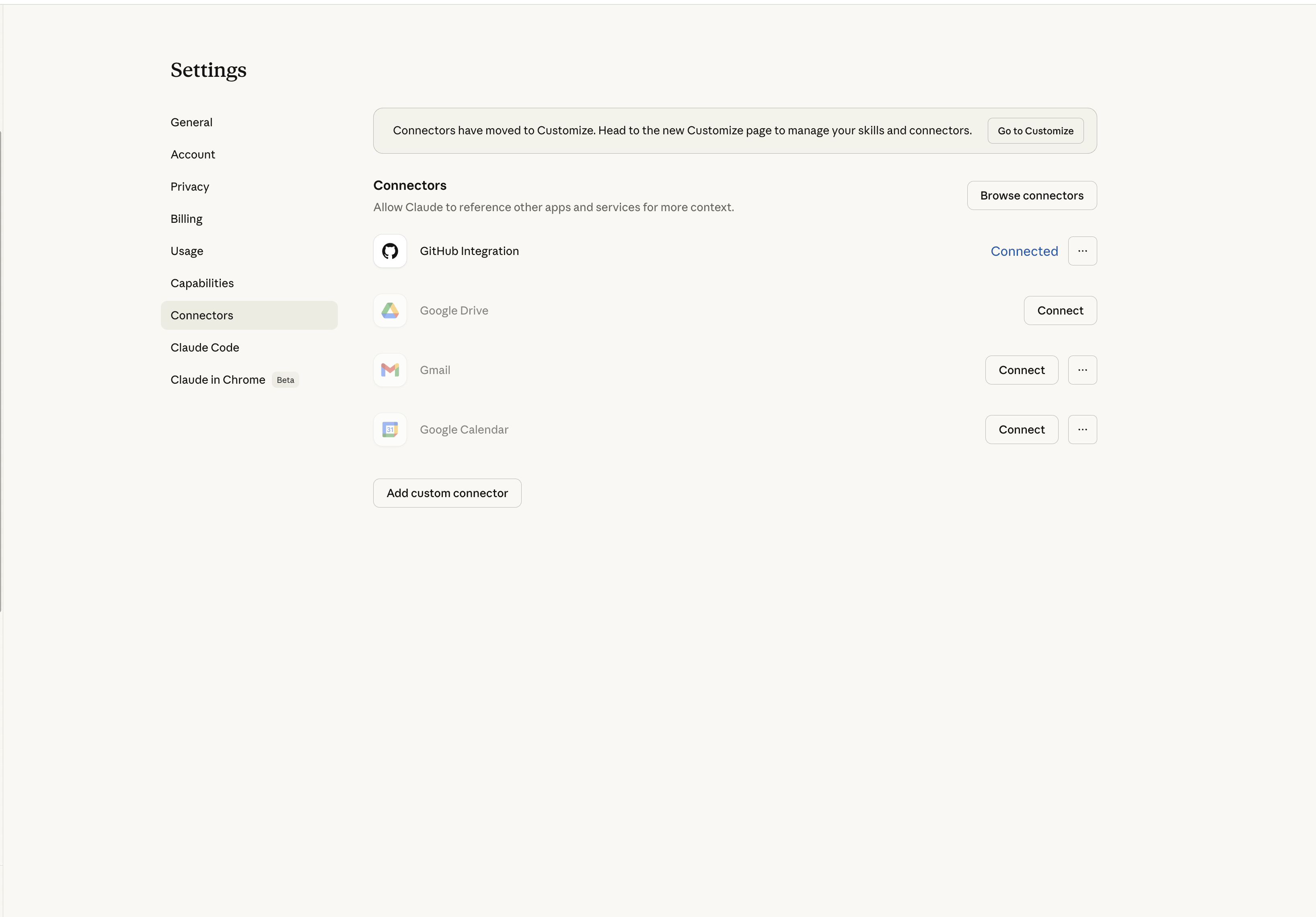
Enter the athletedata server URL
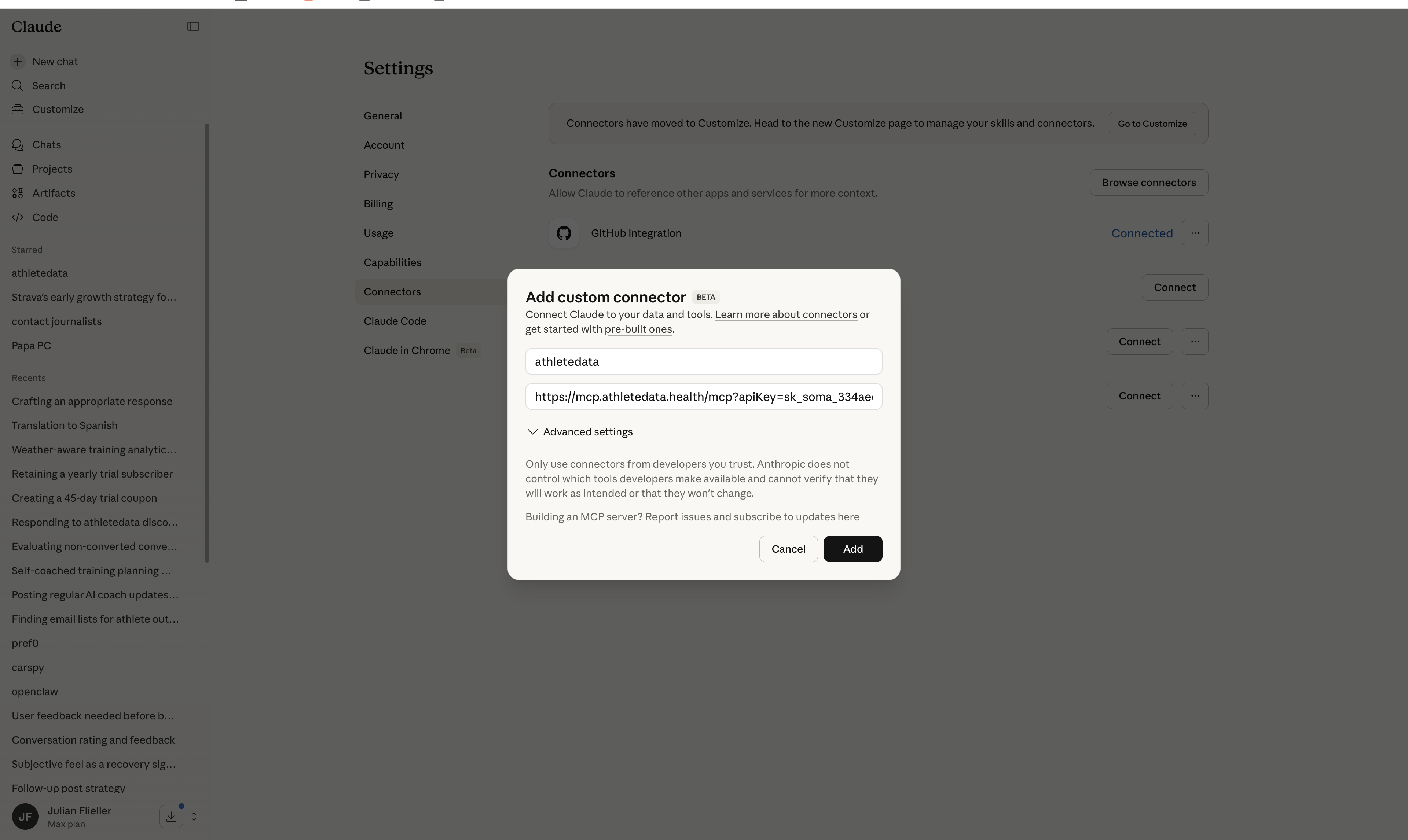
A dialog opens asking for a name and a URL.
- Name:
athletedata - URL:
https://mcp.athletedata.health/mcp
That is the whole URL - the same one for everybody, with no key on the end. You sign in to athletedata two steps from now, and that is what ties the connector to your account.
Then click Continue.
If you got here from our Add to Claude button, Claude shows a red note saying the connector was suggested by an external link. That is Claude being careful about any prefilled connector, not a problem with the URL - check it reads https://mcp.athletedata.health/mcp and carry on.
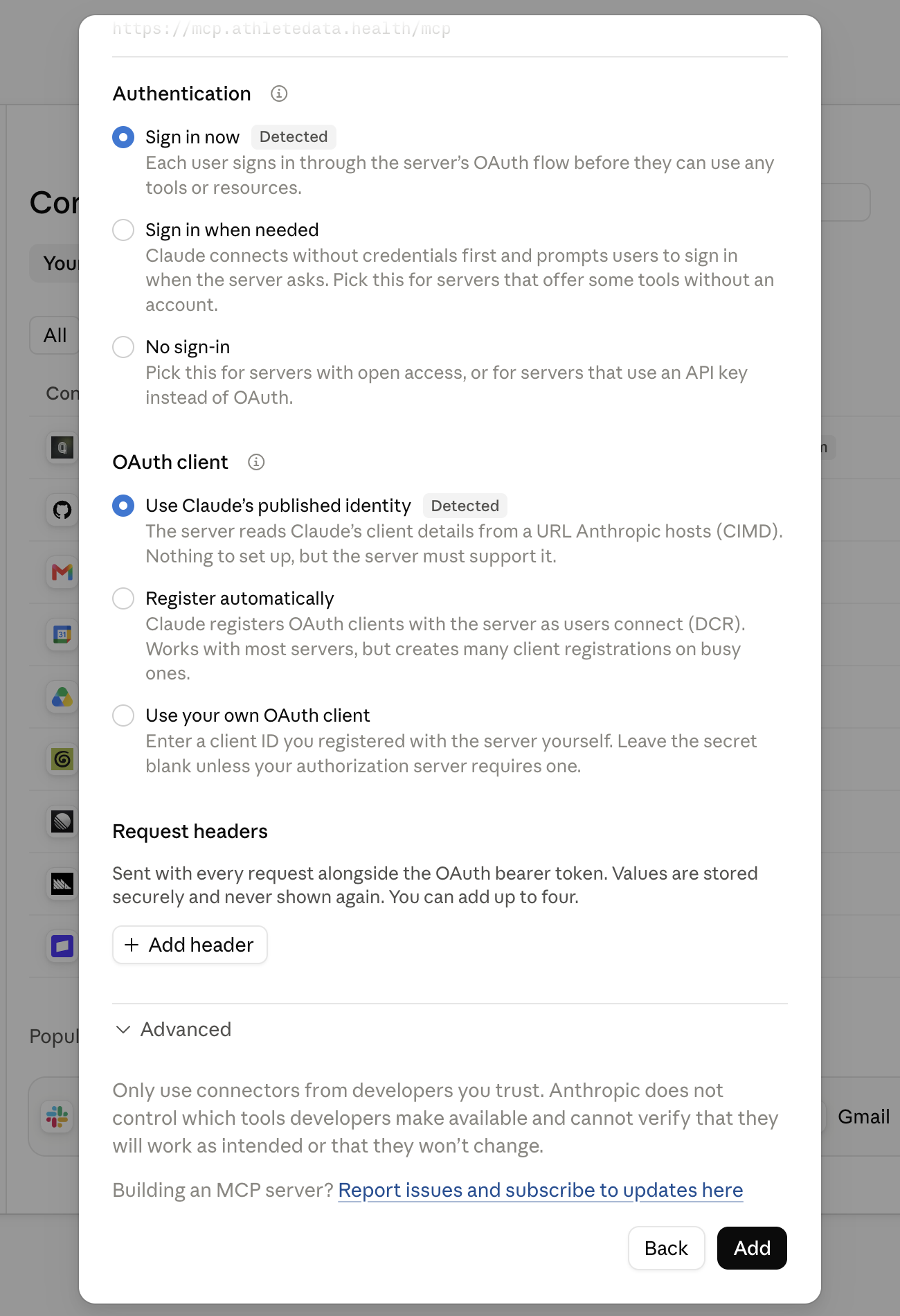
Leave the sign-in options as they are
The next page asks how to authenticate. Claude reads this from our server, so both answers should already be filled in and marked Detected:
- Authentication: Sign in now
- OAuth client: Use Claude's published identity
Nothing to fill in, no client ID, no secret. Click Add.
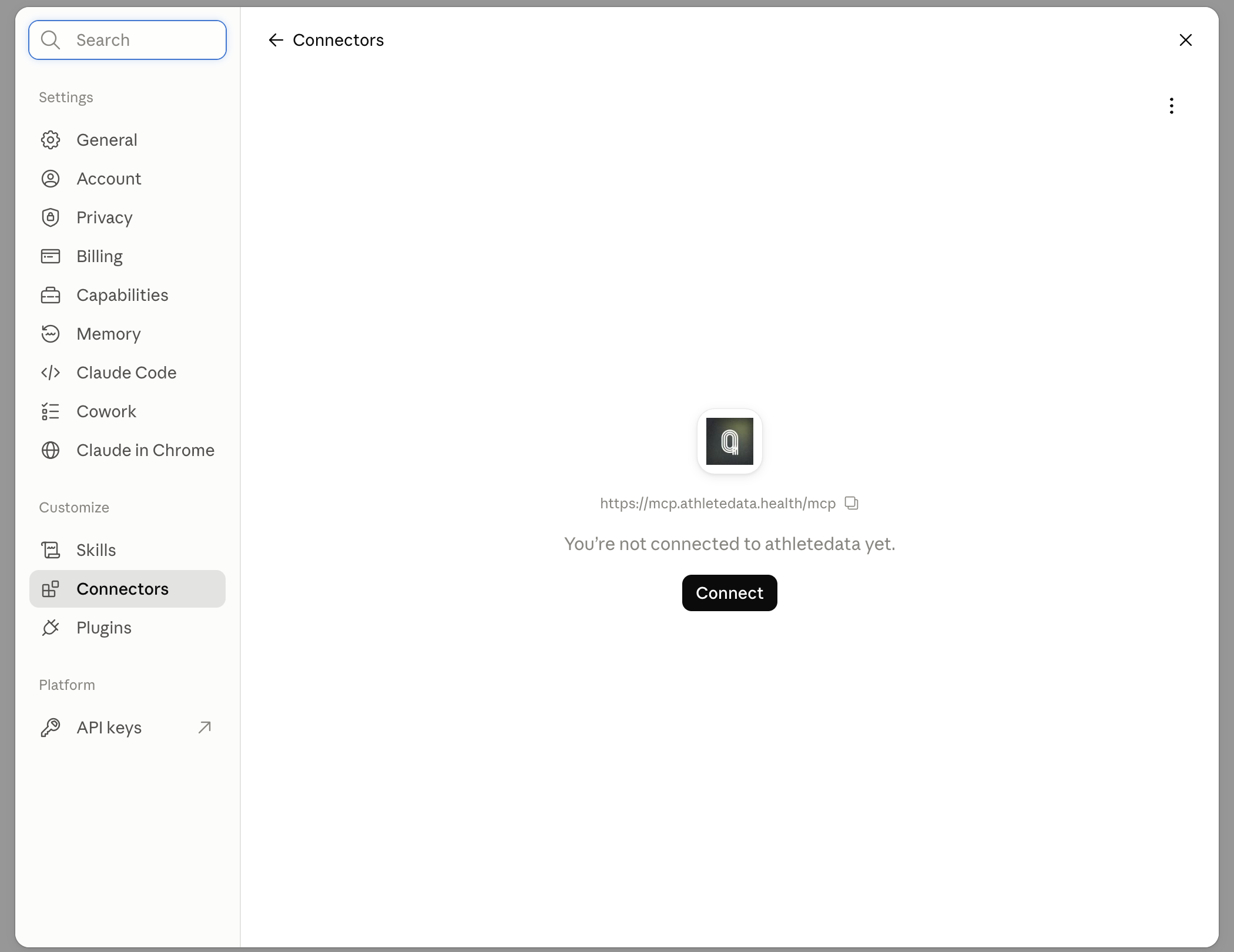
Click 'Connect'
The connector is added but not yet signed in - it says You're not connected to athletedata yet. Click Connect.
Sign in and approve
Claude sends you to athletedata. Sign in if you are not already, check the account shown is the right one, and hit Connect. The connector flips to Connected and you are live.
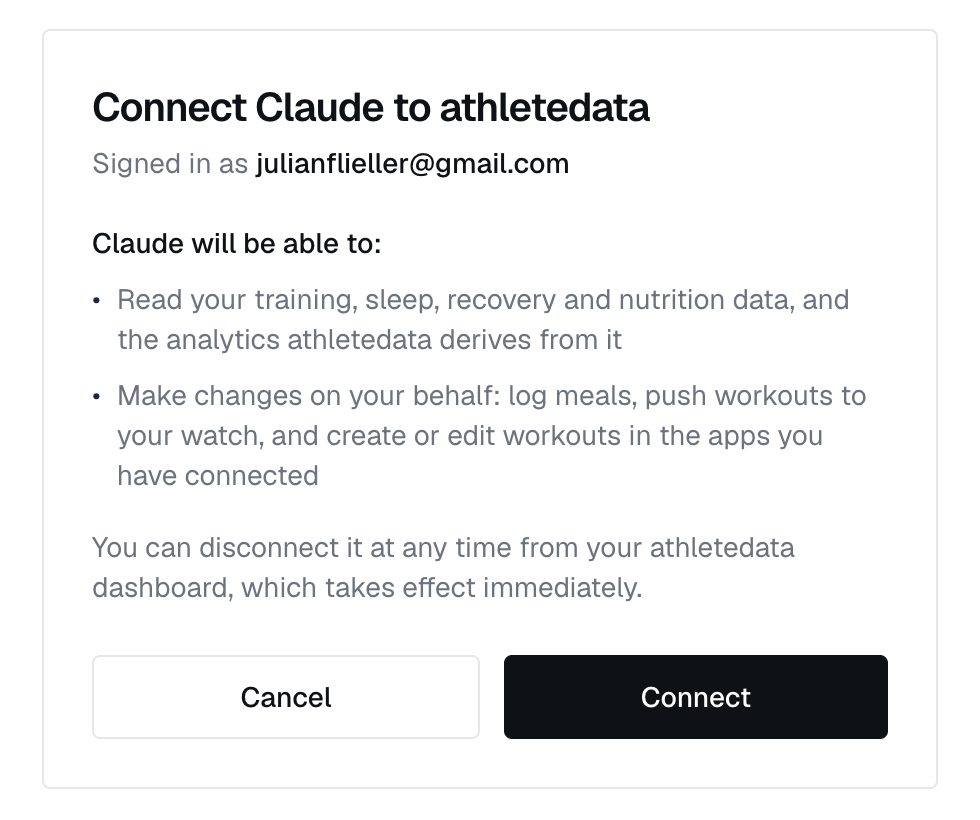
You can disconnect it at any time from your athletedata settings, and it loses access immediately.
Open a new chat and ask anything about your training - the tools will be called automatically. Try something like:
What was my training load over the last 4 weeks, and how does my HRV trend compare?
Reference: JSON config
If you're editing claude_desktop_config.json directly (advanced), here's the equivalent config:
{
  "mcpServers": {
    "athletedata": {
      "command": "npx",
      "args": [
        "mcp-remote",
        "https://mcp.athletedata.health/mcp"
      ]
    }
  }
}
The first run opens a browser once so you can sign in to athletedata. If your client cannot do that, append your API key to the URL instead - https://mcp.athletedata.health/mcp?apiKey=YOUR_API_KEY - and grab the key from your dashboard.
Not working?
- Make sure your athletedata subscription is active - check your billing page.
- If Claude never asked you to sign in, check the URL is exactly
https://mcp.athletedata.health/mcp- with nothing after it. - Signed in as the wrong account? Disconnect the connector in Claude, sign out of athletedata, and add it again.
- Connect at least one app (Garmin, WHOOP, Oura, etc.) on the integrations page - otherwise the tools have nothing to query.
- Stuck? Email team@athletedata.health and we'll help directly.
New to athletedata?
athletedata pulls your training, sleep and recovery out of 35 apps - Garmin, WHOOP, Oura, Apple Health, Hevy and the rest of your stack - and keeps it in one place. This guide is how you point the AI you already use at it. You just need an account first.
Works with Claude, ChatGPT, Cursor, Perplexity and Lovable. Cancel anytime.