Setup guide
Connect athletedata to Cursor
Add the athletedata MCP server to Cursor so you can query your training data inline while you work.
Fastest way
Install the athletedata server in Cursor in one click
The link hands Cursor your personal server URL and it writes the entry into mcp.json for you. Nothing to copy, nothing to paste. Prefer to do it by hand? The steps below still work.
Or add it by hand
Open Cursor Settings
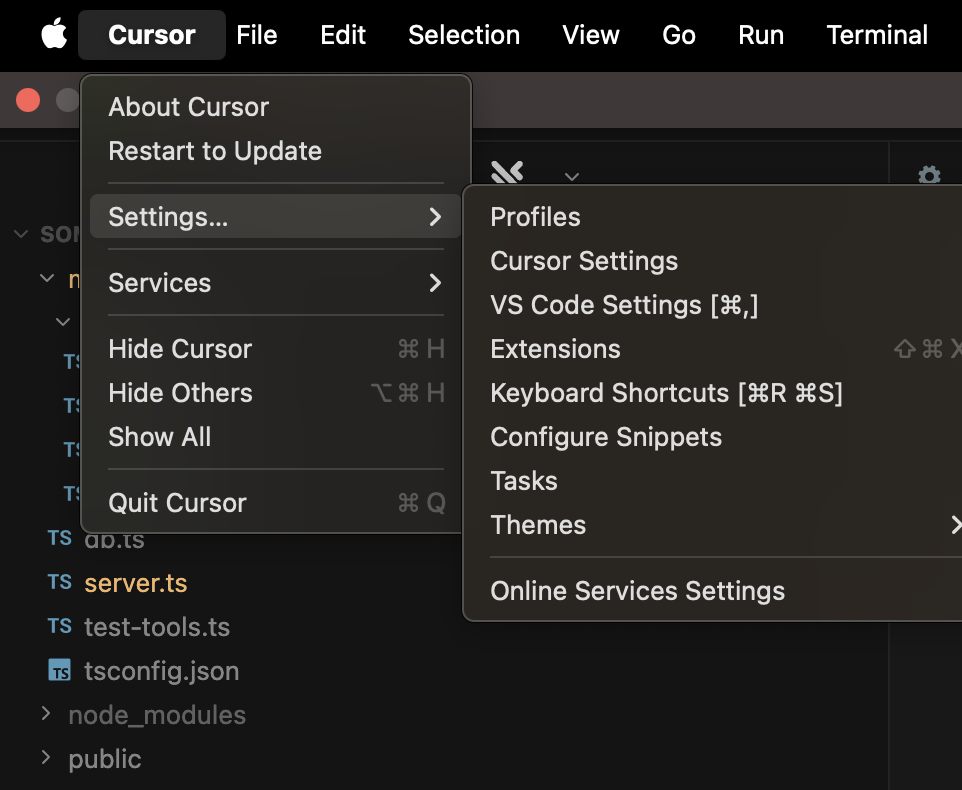
In the menu bar, click Cursor → Settings... → Cursor Settings.
Go to Tools & MCP
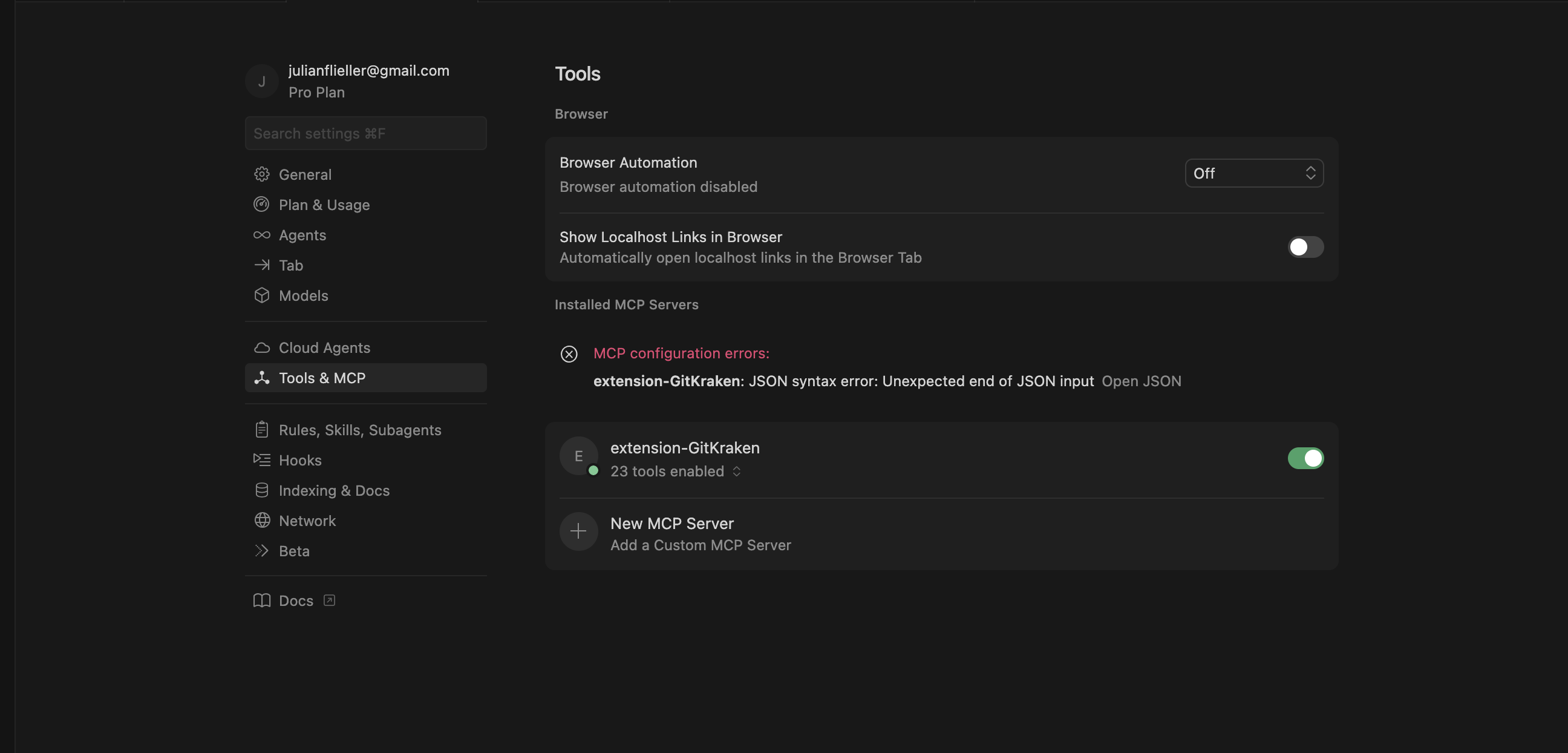
In the settings sidebar, click Tools & MCP. You should see your installed MCP servers (if any) and a New MCP Server entry at the bottom.
Add a new MCP server
Click New MCP Server → Add a Custom MCP Server. Cursor opens the mcp.json file.
Grab the JSON config from your dashboard using the Copy JSON config button, then paste it into Cursor's mcp.json.
For reference, the config looks like this:
{
  "mcpServers": {
    "athletedata": {
      "command": "npx",
      "args": [
        "mcp-remote",
        "https://mcp.athletedata.health/mcp"
      ]
    }
  }
}
The first run opens a browser once so you can sign in to athletedata. If your client cannot do that, append your API key to the URL instead - https://mcp.athletedata.health/mcp?apiKey=YOUR_API_KEY - and grab the key from your dashboard.
Save and start using it
Save the file. Cursor picks up the new server automatically and the athletedata tools become available in the chat panel. Try asking:
What was my average HRV last week, and how does it compare to my 30-day baseline?
Not working?
- If Cursor shows an MCP configuration error banner, the JSON is malformed - re-copy it from the dashboard and replace the entire file contents.
- Make sure your athletedata subscription is active - check your billing page.
- Connect at least one app (Garmin, WHOOP, Oura, etc.) on the integrations page - otherwise the tools have nothing to query.
- Stuck? Email team@athletedata.health and we'll help directly.
New to athletedata?
athletedata pulls your training, sleep and recovery out of 35 apps - Garmin, WHOOP, Oura, Apple Health, Hevy and the rest of your stack - and keeps it in one place. This guide is how you point the AI you already use at it. You just need an account first.
Works with Claude, ChatGPT, Cursor, Perplexity and Lovable. Cancel anytime.